How to backup Settings for CNCBase or CNCMotion

The default settings at the time of installation are saved per user for CNCMotion.
The default settings at the time of installation are saved per machine for CNCBase.
The default settings at the time of installation are saved per machine for CNCBase.
If you are trying to control a physical CNC Machine the install setting should always be per Machine as all the setting for the CNC machine will be the same for all users.
Backing Up Configuration(s)
1. Open CNC Configuration
2. Goto the Machine Configurations tab, the model selected in bold should be the same as the model of CNC Machine you are currently using.
3. Click Create Copy. Then type in some significant name for the machine, Dr Murphys 6100 or the machine serial number is best.
4. Now we have a name we can get the settings files.
The settings files are located in one of the following directories.
CNCBase Per User: %appdata%\Intelitek\CNCBase for Intelitek CNC & Fanuc emulator\Machine Model\#Name of Configuration
CNCBase Per Machine: C:\ProgramData\Intelitek\CNCBase for Intelitek CNC & Fanuc emulator\Machine Model\#Name of Configuration
CNCMotion Per User: %appdata%\Intelitek\CNCMotion for Intelitek CNC & Fanuc emulator\Machine Model\#Name of Configuration
CNCMotion Per Machine: C:\ProgramData\Intelitek\CNCMotion for Intelitek CNC & Fanuc emulator\Machine Model\#Name of Configuration
Copy this folder to a safe place.
Restoring a Configuration(s):
1. Goto the folder containing the configuration settings based on the software you installed and the Model of Machine.
CNCBase Per User: %appdata%\Intelitek\CNCBase for Intelitek CNC & Fanuc emulator\Machine Model\
CNCBase Per Machine: C:\ProgramData\Intelitek\CNCBase for Intelitek CNC & Fanuc emulator\Machine Model\
CNCMotion Per User: %appdata%\Intelitek\CNCMotion for Intelitek CNC & Fanuc emulator\Machine Model\
CNCMotion Per Machine: C:\ProgramData\Intelitek\CNCMotion for Intelitek CNC & Fanuc emulator\Machine Model\
2. Copy the folder with "#Config Name" to the folder noted in step one.
3. Open CNC Configuration
4. Goto the Machine Configurations tab, select model of machine you are setting up and expand it. It should contain the name of "#Config Name" folder previously copied.
5. Click the Make Active Button and then you should receive a message the setup will need to be restarted, click yes.
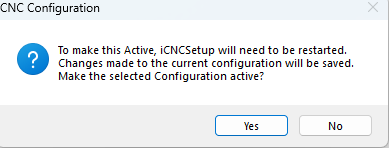
6. Return to the Machine Configurations tab and the selected name should be bold.
7. Click ok and all the settings should have been restored.